
In this article
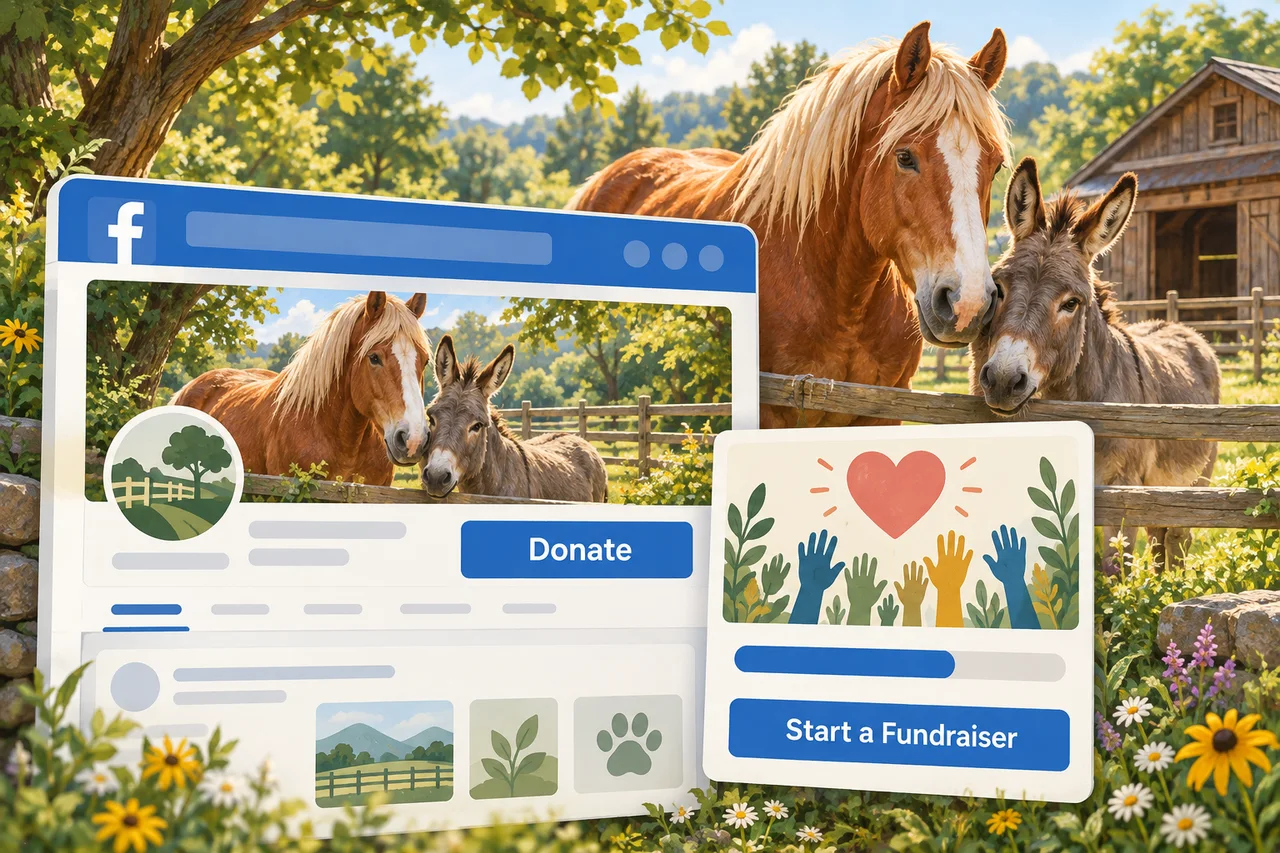
Facebook can make it easier for people to support your nonprofit without leaving the platform. Once your organization is approved, supporters can also create birthday fundraisers and other campaigns benefiting your work.
The important part is getting your nonprofit approved for Facebook’s fundraising tools. Adding a link to PayPal or your website does not, by itself, enable those features.
This guide focuses on U.S. nonprofits. Availability and requirements vary by country, and Facebook’s menu labels can change.
1. Get your nonprofit’s information ready
For a typical U.S. animal rescue or sanctuary, start by confirming that the organization is an IRS-recognized 501(c)(3) public charity in good standing. Simply choosing “Nonprofit” as your Facebook Page category does not establish eligibility.
Have these ready:
- Your nonprofit’s legal name, EIN, registered address, and IRS determination letter.
- An organization-owned email address and business checking account in the nonprofit’s legal name.
- Information and any requested identification for the authorized representative.
- Access to manage the nonprofit’s Facebook Page, including full control for the person completing setup.
Use an organization Page rather than a personal profile or Facebook Group. Complete its About information and choose an appropriate nonprofit or charity category.
2. Set up PayPal Giving Fund
For native Facebook charitable donations, PayPal Giving Fund receives donations and grants the money to the benefiting nonprofit. It is a separate charity, not simply another name for your regular PayPal account. PayPal explains how the program works here.
Follow PayPal’s enrollment instructions:
- Create or use a PayPal Business account belonging to the nonprofit.
- Select Nonprofit as the business type and complete charity confirmation.
- Supply the requested organizational documents and confirm the nonprofit’s bank account.
- Confirm enrollment in PayPal Giving Fund.
Most eligible U.S. charities are enrolled automatically after charity confirmation, but wait for the enrollment confirmation. Some states require an additional enrollment form; follow the current instructions for your location.
An existing personal PayPal account or PayPal.Me link does not prove that the nonprofit is enrolled.
3. Apply for Facebook’s fundraising tools
While logged into the account that manages your Page, open Facebook’s fundraising signup.
Select the correct nonprofit Page and follow the application prompts. Use the same legal name and EIN as your verified charity records, connect the correct charity when prompted, and complete any outstanding verification or terms.
Check the application status and requests for more information. PayPal Giving Fund enrollment and Meta approval are separate steps, so allow time for both before announcing a campaign.
4. Add the Donate button and allow supporter fundraisers
Once approved, switch into your nonprofit’s Page and look for Add action button or Edit action button, often beneath the cover photo or in the three-dot menu.
Choose Donate or Donate Now and follow the prompts for Facebook donations benefiting your approved nonprofit. Check the destination carefully: a button that sends visitors to an outside website serves a different purpose.
Then check Nonprofit Manager → Settings → Fundraising, where available. Enable the options allowing people to:
- Create fundraisers for your nonprofit.
- Add donation buttons to their posts.
Save your changes. These permissions are an easy detail to miss; this nonprofit setup checklist shows the settings.
If the controls or Donate option are missing, check Page access, application status, and PayPal Giving Fund enrollment before assuming setup is complete.
5. Show supporters how to start a campaign
Supporters can visit Facebook Fundraisers from their own accounts, choose Raise money or Create a fundraiser, and select a nonprofit.
They should search for your organization, check that they have selected the correct charity, and add a title, goal, end date, story, and photo as prompted. Then they can publish and share their campaign.
They do not need administrator access to your Page. The campaign benefits the selected charity through PayPal Giving Fund; supporters do not collect the money personally and forward it to you.
Before promoting this, ask a trusted supporter to confirm that your nonprofit appears in the selection list. If it does not, check the EIN match, enrollment, approval, and fundraising permissions.
A few things to know before launching
- Fees can apply. Do not promise that every dollar reaches your nonprofit. Review Meta’s current fee information and the donation checkout.
- Payouts are not immediate. Enrolled charities generally receive consolidated monthly grants into their PayPal Business accounts. Plan ahead for urgent expenses. PayPal describes its payout schedule here.
- Donor details may be limited. PayPal Giving Fund handles donation receipts; your reporting includes the donor information shared with you.
- Check the complete experience. Preview the button as a visitor, verify the charity name at checkout, and arrange a small authorized test donation before a major campaign.
- Protect access. Enable two-factor authentication and give helpers their own Page access instead of sharing passwords.
Keep a donation option on your own website too. Facebook can help people discover and support your work, while your website gives them another dependable place to find you.